
Progress Tracking and Transcripts in Strivocal
Strivocal now makes it easier to follow your practice history and review recordings with optional, interactive speech-to-text transcripts.
Written by: Charlie Murphy
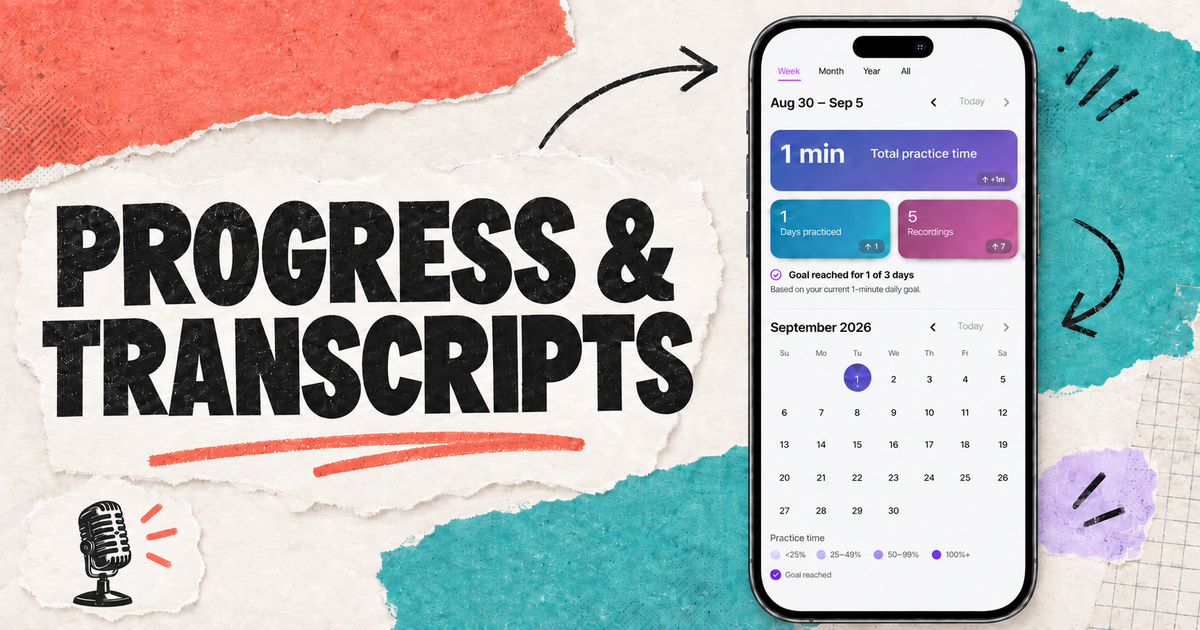
The latest Strivocal release gives you two new ways to learn from your practice. A new Progress tab brings your activity together across days, weeks, and months. Optional speech-to-text transcripts make it easier to find and replay a specific moment in a recording.
Together, these features connect the big picture with the details. You can check whether you have been practicing consistently, then open a session and examine the words or phrases you want to hear again.
Turn practice into a pattern you can see
The new Progress tab organizes your history into a summary, calendar, trend chart, and session list. Instead of opening recordings one at a time to reconstruct what you did, you can begin with the time period that matters to you and move into the details from there.
Three key statistics
The summary highlights three straightforward totals:
- Practice time
- Days practiced
- Recordings made
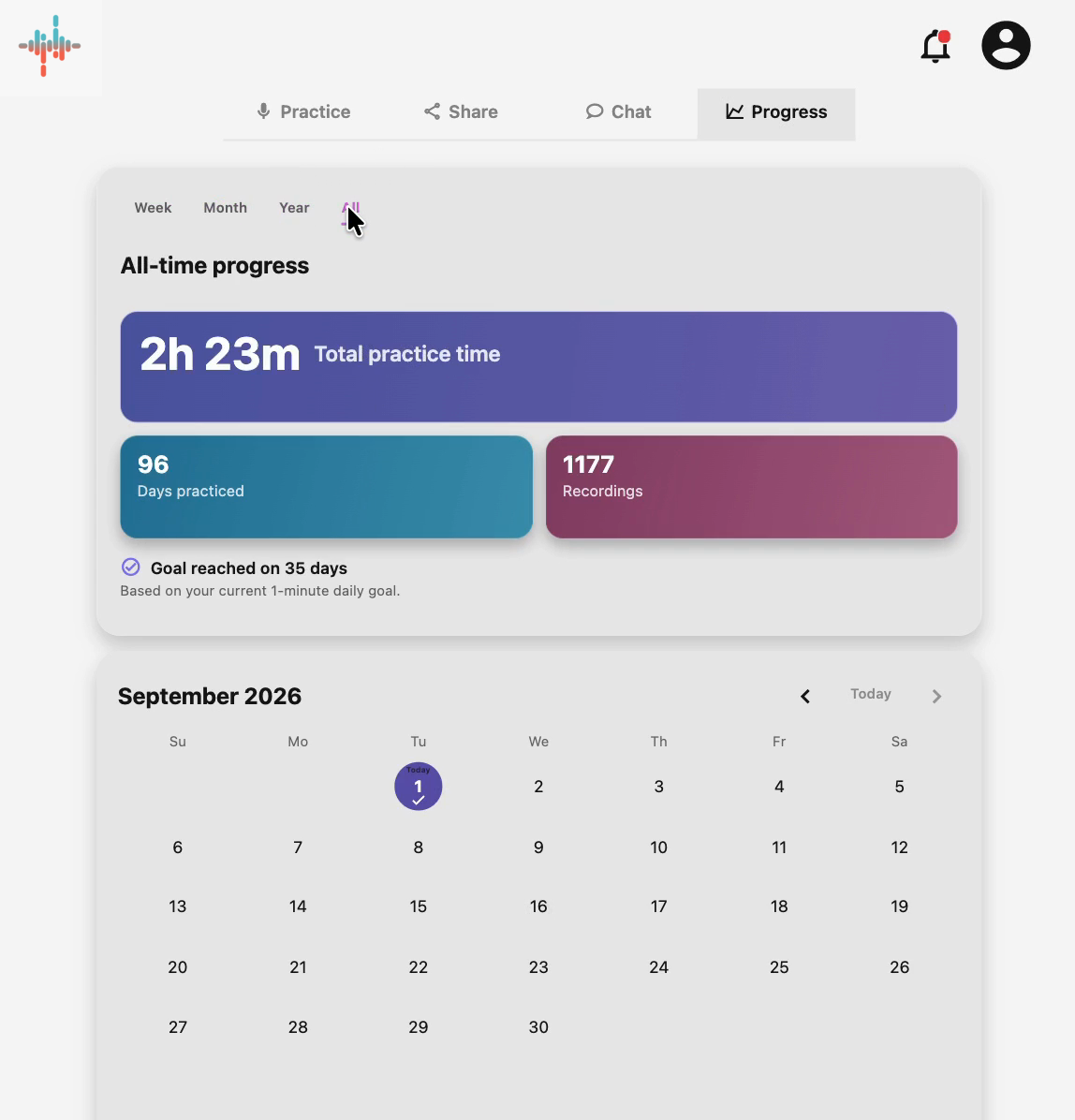
You can switch between week, month, year, and all-time views. That makes it easy to check a recent routine, compare a busier month with a quieter one, or see how much practice has accumulated since you started using Strivocal.
Three ways to view your data
Summary metrics. Shows the total practice time, days practiced, and recordings made for the selected period. It gives you a quick overview of your activity.
The calendar. Shows when you practiced and how active each day was. If you use a daily practice goal, completed days are marked there too. It helps you recognize the routine you are actually building.
The trends view. Shows a bar chart of your practice time, active days, or recording count across your selected period. It helps you see patterns and changes over time.
Transcription: review a recording word by word
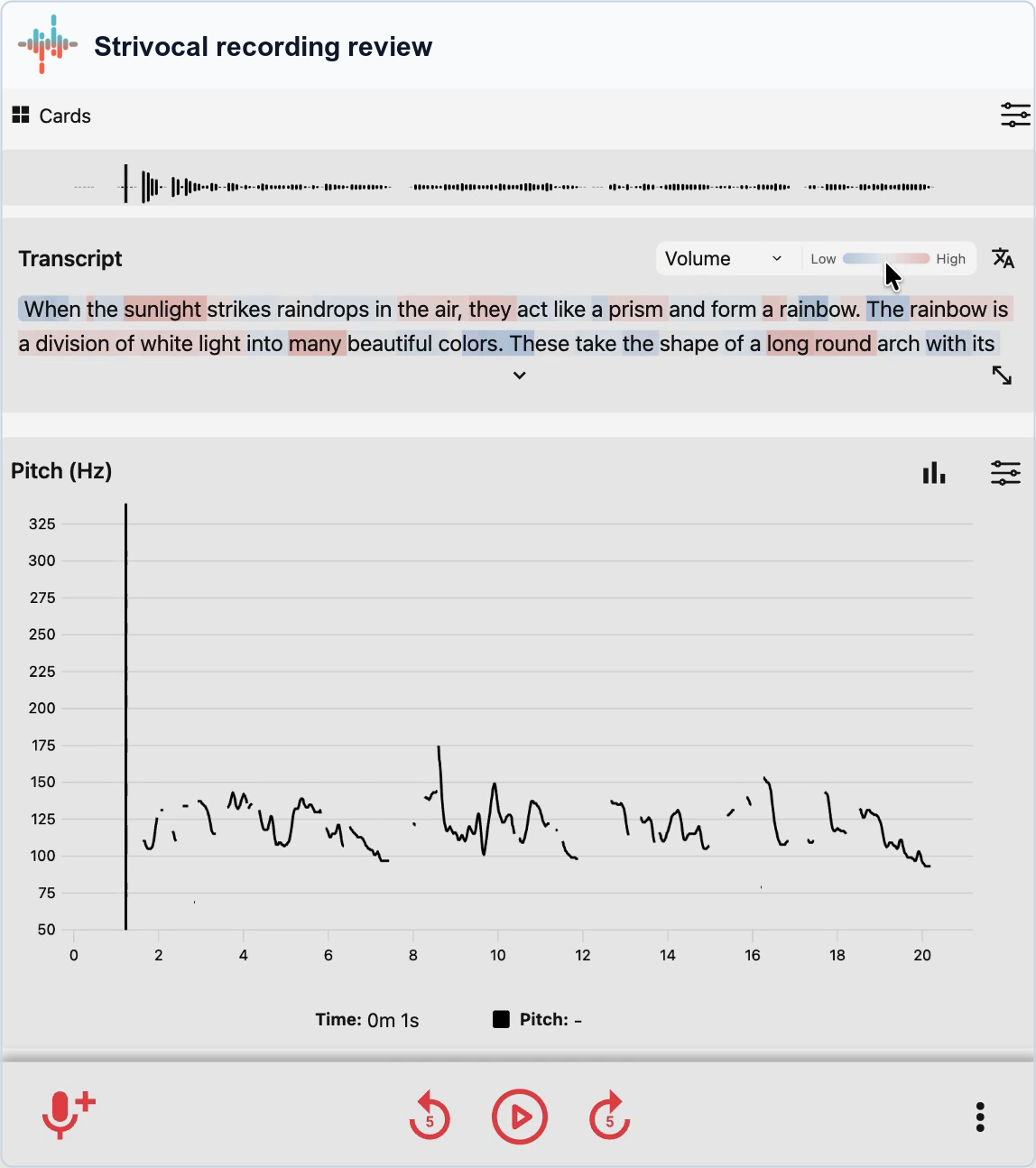
Transcription adds a text view to saved audio. When you enable it, Strivocal converts the speech in a recording into a transcript and keeps it with the clip. The transcript is also a playback control. Select a word to jump to that point in the audio. As the recording plays, the current words are highlighted, so you can follow along without dragging through the timeline to find one sentence.
Transcription has many potential uses. It can be useful when you are comparing two recordings of a speech, checking the delivery of a line, reviewing a singing exercise with spoken cues, or listening for a change that happened halfway through a longer practice session.
Put acoustic feedback next to the words
You can add a feedback overlay to the transcript and choose the measurement you want to inspect:
- Pitch
- Formants
- Volume
- Perceived-gender feedback
The color overlay helps connect a change in the graph with the word being spoken at that moment. You can leave the overlay off when you simply want a searchable way to replay the clip, or turn on one measurement when you have a specific question about the recording.
These measurements are observations about the audio, not a score or judgment about your voice. They are most useful when you pair them with careful listening, comfort, and feedback from people you trust.
More freedom beyond prepared prompts
Practice cards remain available when you want a repeatable word, phrase, or sentence. Transcription supports a different kind of session: speak naturally, rehearse your own material, or record an unscripted reflection and still come back to the exact passage you want to review.
Using both can create a useful practice loop. Start with a prepared card to focus on one skill, then record a more natural sentence or conversation to see how that skill carries into everyday speech.
A smoother start and more accurate note labels
This release also includes several smaller improvements:
- A new tutorial introduces the core recording and review workflow for people opening Strivocal for the first time.
- Corrected musical-note labels fix octave mapping and placement issues that could make some pitch notes appear too low or in the wrong position.
- Performance and stability updates address a collection of smaller issues across the app.
Try the new review tools
Open the latest version of Strivocal on iOS, Android, or the web and choose Progress to explore your practice history. To try transcripts, enable transcription for a recording and open the saved clip when it is ready to review.
Try Strivocal for free, and send questions or suggestions to [email protected].