
Feedback and Privacy Settings
Updated on: Mon Jul 20 2026
Strivocal’s Feedback and privacy settings let you decide when voice feedback appears and where each type of analysis runs. These controls can help you balance privacy, device performance, and the kind of feedback you want during practice.
You can find them by opening General Settings and scrolling to Feedback and privacy.
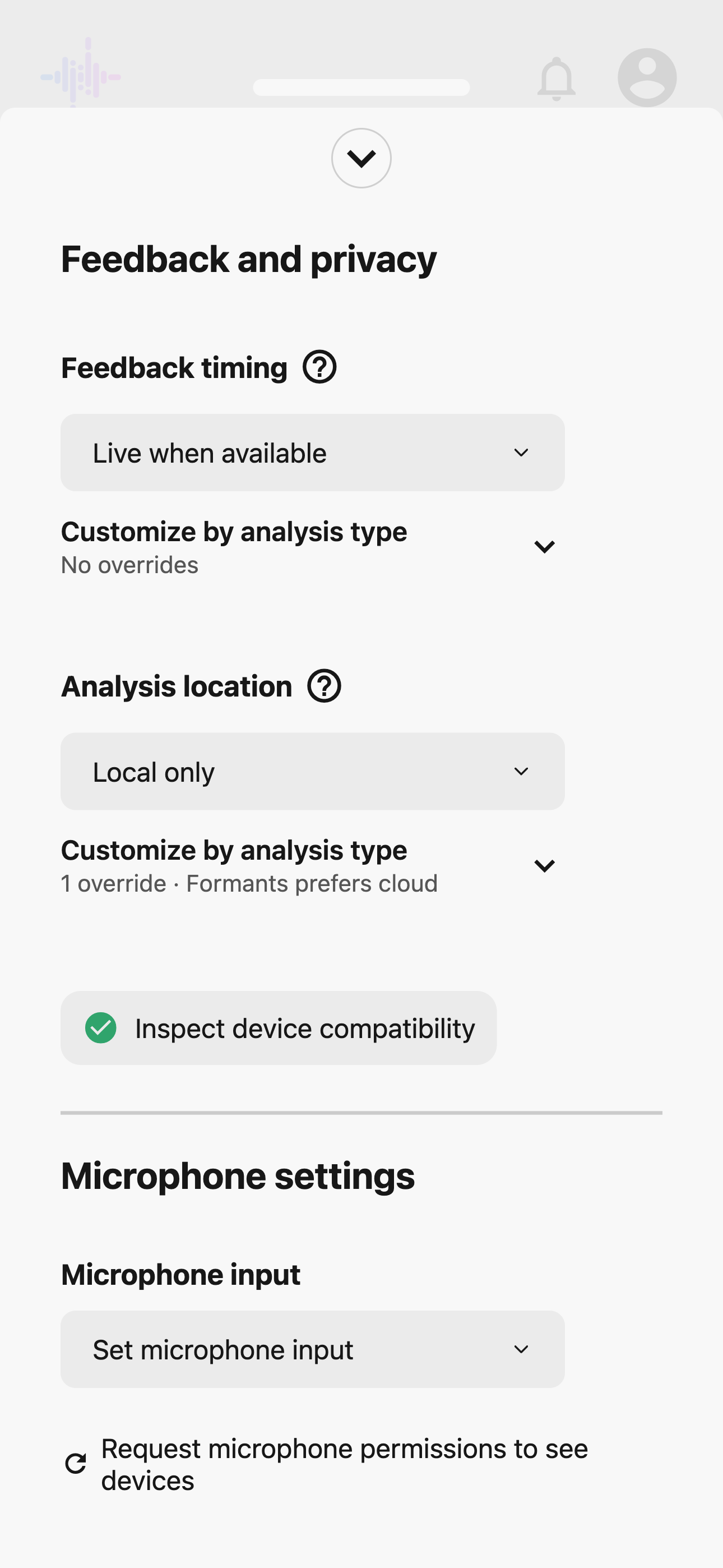
Choose when feedback appears
The Feedback timing setting controls whether Strivocal tries to show results while you are speaking or waits until the recording ends.
- Live when available shows feedback during recording when your device and analysis settings can support it smoothly.
- After recording waits until you stop recording before running the analysis. This is often a better option for lower-powered devices and can avoid interruptions caused by demanding real-time models.
You can also open Customize by analysis type to set separate timing for pitch, perceived gender, and formants. This is useful when one analysis runs comfortably in real time but another does not. Any analysis set to Use global follows your main Feedback timing choice.
Changing feedback timing does not by itself decide whether audio stays on your device. Analysis location controls that choice.
Choose where analysis happens
The Analysis location setting controls whether supported voice analysis happens on your device or in the cloud. This is the main privacy control for deciding whether audio used by an analysis feature can leave your device.
- Local first tries to run analysis on your device. If local analysis is unavailable or cannot run smoothly enough, Strivocal can use cloud analysis instead.
- Local only keeps analysis and its audio on your device. Some feedback may be delayed until after you finish recording, or may be unavailable if your device cannot run the required model.
- Prefer cloud uses cloud analysis for perceived gender and formants. Pitch and volume continue to run on your device.
Your global choice is the default for supported analysis features. Under Customize by analysis type, you can give perceived-gender or formant analysis a different location setting. For example, you can keep formants local while allowing perceived-gender analysis to prefer the cloud. An analysis set to Use global follows your main Analysis location choice.
These settings control analysis routing. They do not change any separate choices you make to save, import, or share a recording.
Inspect device compatibility
Select Inspect device compatibility to see whether your current device can run supported analysis models on-device and in real time. Strivocal checks pitch, volume, perceived-gender, and formant support and shows the result for each one.
The check may download the model files needed for local analysis. It benchmarks the device’s ability to run those models; it does not need to analyze one of your saved voice recordings.
Strivocal runs the compatibility check separately for each device and browser. The results are saved in that browser’s local storage and reused on later visits. If you switch devices or browsers, the new device-and-browser combination runs and stores its own check, so you do not need to rerun the check manually just because you switched.
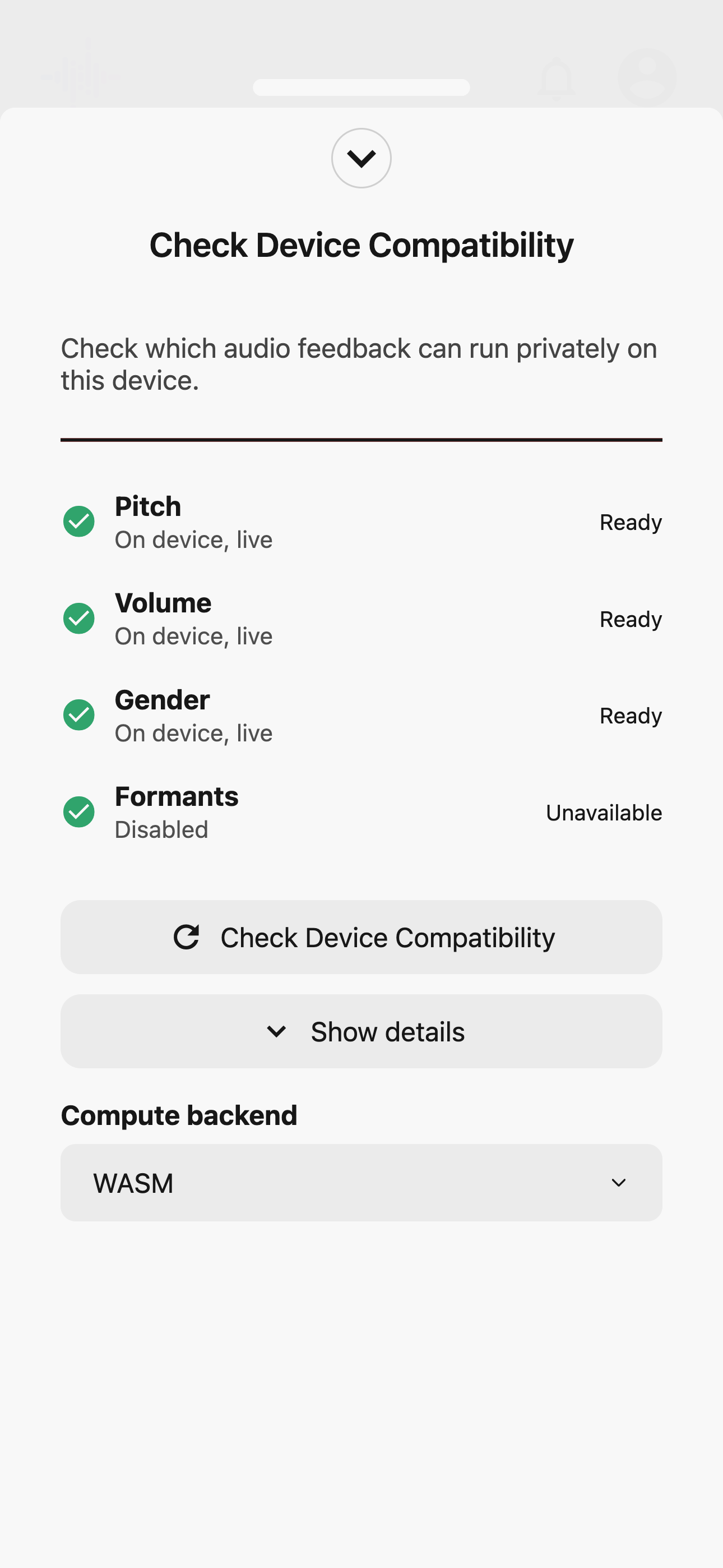
Use the status beside each analysis as a guide:
- A green check or Ready means the feature can use the route shown, such as on-device and live.
- A warning can mean the model works locally but may be too slow for live feedback. Try After recording, or use a cloud option if that matches your privacy preference.
- A red error means local analysis is unavailable or impractical on the current device. With Local only, that feedback may be unavailable. Local first can fall back to the cloud, while Prefer cloud can avoid relying on the local model for supported analyses.
The details shown under each feature describe the route Strivocal expects to use. A successful overall check does not always mean every feature is running locally; it may mean your selected cloud or after-recording fallback is available.
Run the check again
Open Inspect device compatibility, then select Check Device Compatibility to rerun the benchmarks. You normally only need to rerun it after a major operating-system or browser update, or if live feedback begins to stutter or stop.
On the web, most people should leave Compute backend set to Automatic. The WASM and WebGPU choices are troubleshooting options; changing one reruns the compatibility check so you can compare the result on that browser and device.
If a feature is not ready for real-time on-device analysis, you can still choose the combination that fits you: keep it local and receive feedback after recording, allow a cloud fallback, or turn off feedback you do not want to use.